How to Spot and Remove Malware from Your Device
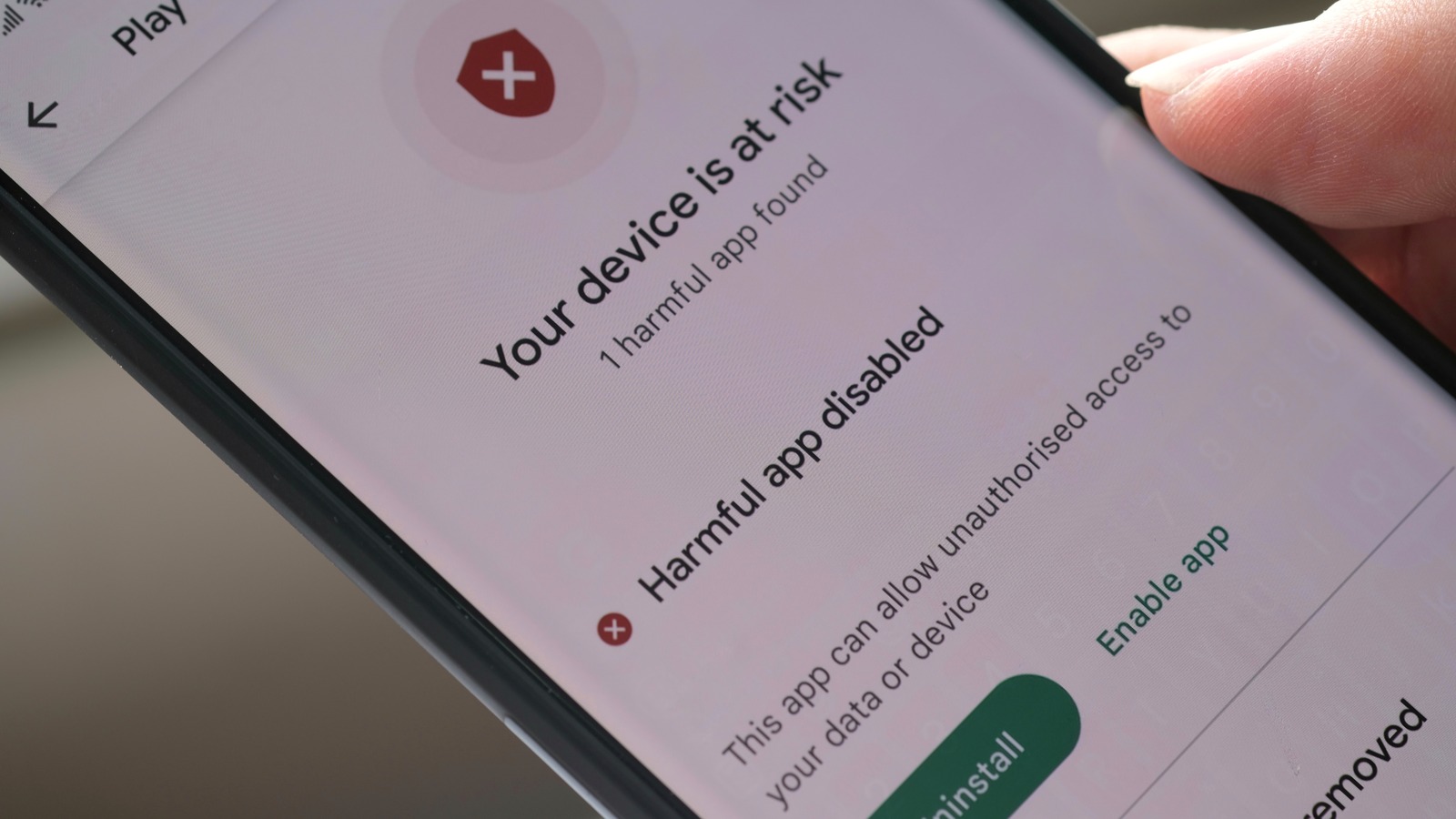
The good news? Most malware infections are preventable, and even when they happen, you can usually spot and remove malware before the damage gets out of control. Malware is one of those things that can turn a perfectly good day into a nightmare. One minute your laptop or phone is running smoothly, and the next it’s crawling, throwing weird pop-ups, or worse—stealing your personal information.
In this post, we’ll walk through everything you need to know about spotting and removing malware from your computer, laptop, tablet, or smartphone. Whether you’re dealing with a suspicious slowdown or just want to stay ahead of threats in 2026, this article covers the signs, the removal steps, the best tools, and how to keep your device clean moving forward.
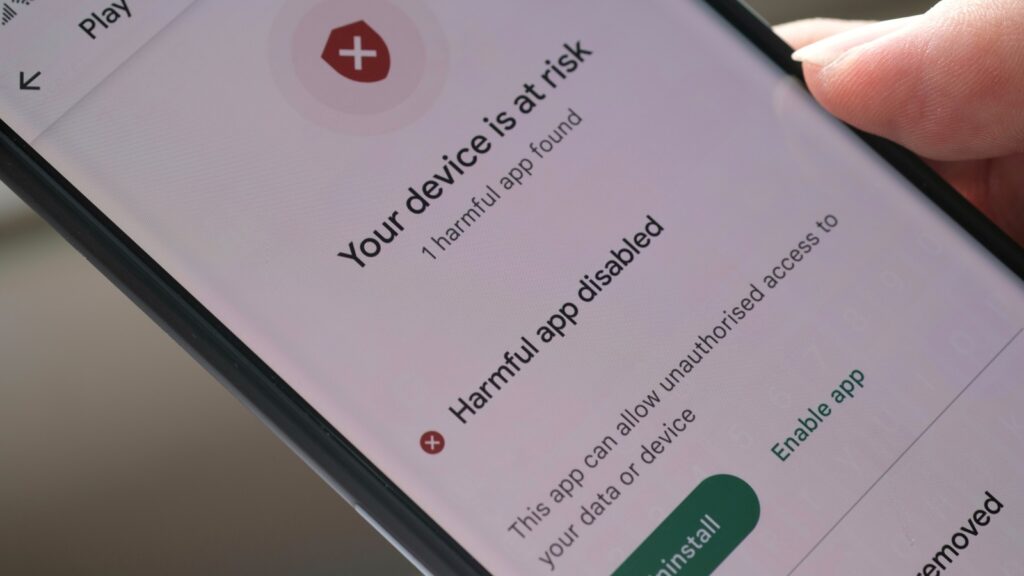
Why this matters right now Cyber threats keep evolving. Ransomware attacks are more targeted, phishing emails look scarily real, and mobile malware is sneaking into apps you trust. Knowing how to spot and remove malware isn’t just a nice-to-have skill—it’s essential for protecting your privacy, your finances, and your sanity.
Let’s start.
What Exactly Is Malware?
Malware is short for “malicious software.” It’s any program or code designed to harm your device, steal data, spy on you, or force you to pay money to get your files back.
Think of malware as a digital intruder. It can sneak in through email attachments, shady downloads, infected websites, or even USB drives. Once inside, it can do anything from showing annoying ads to encrypting your photos and demanding a ransom.
Malware isn’t just a “virus” anymore. The term covers a wide range of threats, each behaving differently.

Image credit: Exploring Malware Types: estl4na.medium.com
This infographic shows how different malware types connect and attack in their own ways. Understanding these helps you recognize what you’re up against.
Common Types of Malware You Might Encounter
Here are the main types people run into most often:
- Viruses These attach themselves to legitimate files or programs. When you run the infected file, the virus spreads. They can corrupt data, slow your system, or steal information.
- Worms Worms spread on their own without needing you to open anything. They exploit network vulnerabilities and can replicate quickly across devices.
- Trojans Named after the Trojan horse, these pretend to be useful software (like a free game or PDF reader). Once installed, they open a backdoor for hackers to control your device or steal data.
- Ransomware This locks your files or entire device and demands payment (usually in cryptocurrency) to unlock them. Some strains encrypt everything; others just threaten to delete files.
- Spyware Spyware quietly watches what you do—keystrokes, browsing history, passwords—and sends the information to the attacker.
- Adware Adware bombards you with pop-up ads, banners, and redirects. It slows your browser and can track your habits to show more targeted ads.
- Rootkits These hide deep in your system and give attackers full control while staying invisible to most antivirus programs.
- Keyloggers They record every keystroke you type, capturing passwords, credit card numbers, and private messages.
- Botnets Your infected device becomes part of a “zombie” network that attackers use to send spam, launch DDoS attacks, or mine cryptocurrency without your knowledge.
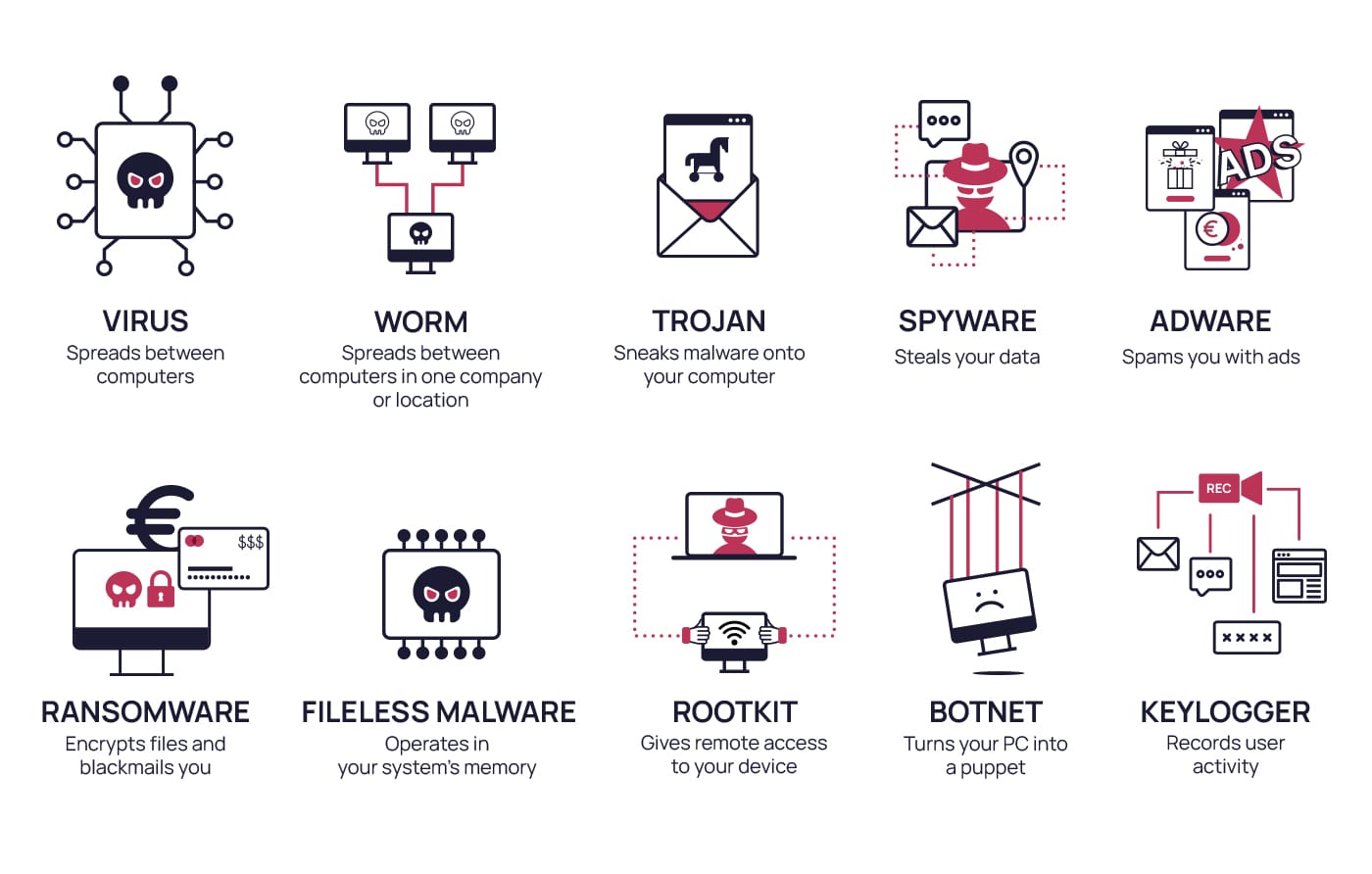
Image credit: sosafe-awareness.com
Seeing these types laid out makes it clearer why spotting and removing malware early is so important.
Early Warning Signs: How to Spot Malware on Your Device
The sooner you notice something is wrong, the easier it is to fix. Here are the most common red flags that scream “malware.”
On Computers and Laptops
- Sudden slowdowns or freezing Your device used to boot in 20 seconds, now it takes five minutes. Programs crash randomly or take forever to open.
Image credit: 5 reasons your computer is slow—yahoo.com
This is one of the top complaints when malware is running background processes or mining crypto.
- Unwanted pop-ups and ads everywhere Even when you’re not browsing, ads appear on your desktop or in strange places. Fake antivirus warnings are a classic trick.
Image credit: Pop Ups saying my computer has viruses – Microsoft
If you see messages like “Viruses found! Click to remove,” close the window immediately—it’s almost always a scam.
- Browser changes you didn’t make New toolbars, changed homepage or search engine, redirects to weird sites, or extra extensions in Chrome/Firefox/Edge.
- High CPU or disk usage when idle Check Task Manager (Windows) or Activity Monitor (Mac). If something unnamed is using 80%+ of resources, that’s suspicious.
- Missing files or programs behaving strangely Documents disappear, or you get error messages about corrupted files.
- Unknown programs or icons on desktop/start menu You never installed that “System Optimizer” or “Free Video Converter.”
On Smartphones and Tablets (Android & iOS)
- Battery drains faster than usual Malware runs in the background, eating power.
- Data usage spikes Spyware or adware sends info or downloads ads constantly.
- Overheating when not in use Similar to high CPU on computers.
- Apps crash or behave oddly Or you see pop-ups inside apps.
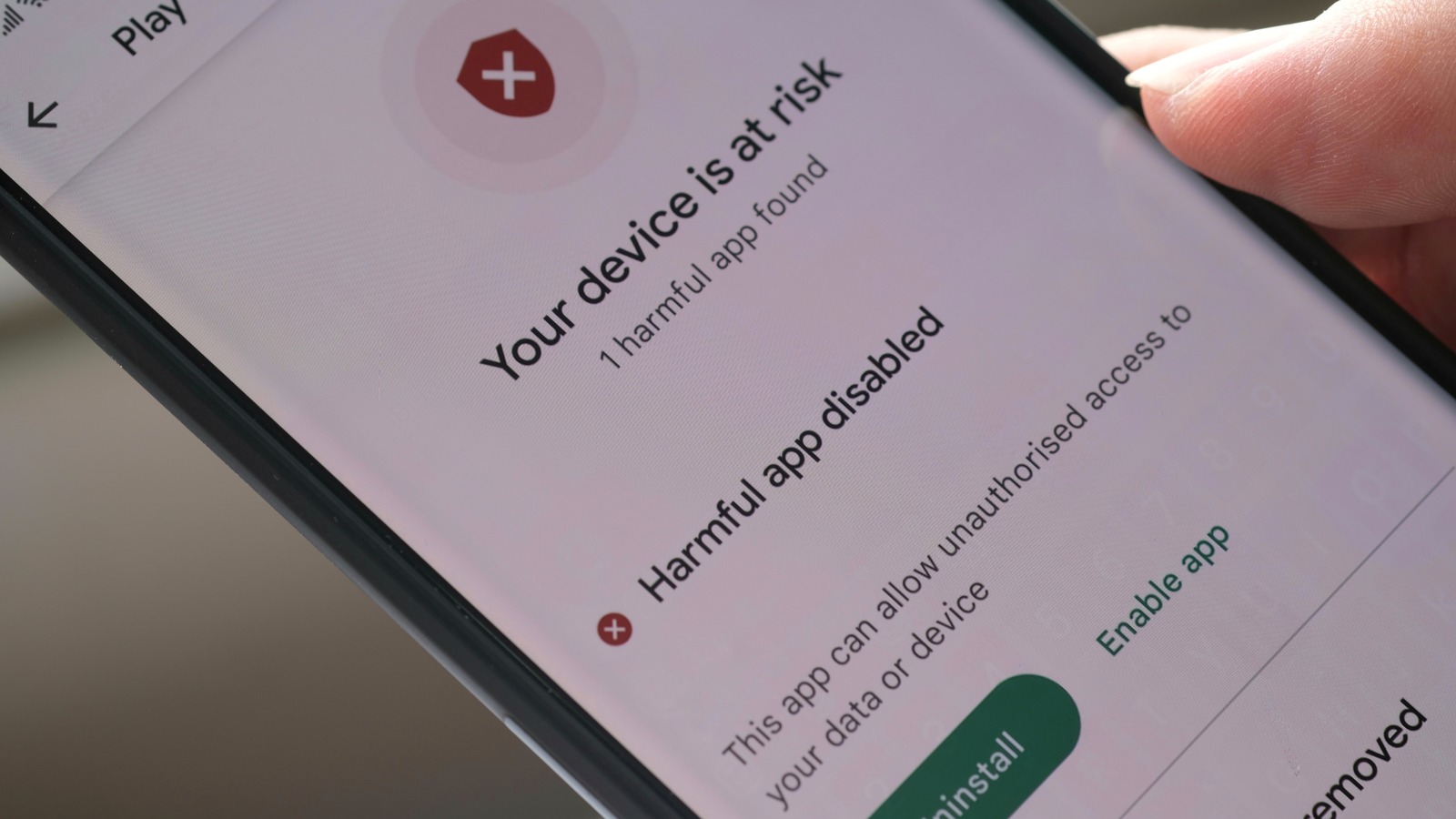
Image credit: 5 Signs That Your Android Device – slashgear.com
- Strange text messages or calls Your phone sends premium-rate messages without your knowledge.
- Unknown apps installed Check Settings > Apps for anything you don’t recognize.
If you notice several of these signs together, it’s time to act.
Step-by-Step Guide to Spot and Remove Malware
Step 1: Disconnect from the Internet
Unplug Wi-Fi or Ethernet. This stops malware from sending stolen data or downloading more threats.
Step 2: Boot into Safe Mode
Windows: Restart and hold Shift while clicking Restart. Go to Troubleshoot > Advanced options > Startup Settings > Restart, then choose 4 or 5 for Safe Mode.
Mac: Restart and hold Shift until the login screen.
Android: Power off, then power on while holding Volume Down (varies by model). Look for Safe Mode in the bottom corner.
iOS: iPhones don’t have traditional Safe Mode, but you can remove suspicious apps manually.
Safe Mode loads only essential drivers, making it harder for most malware to hide.
Step 3: Run a Full Scan with Trusted Antivirus Software
Use a reputable, up-to-date tool. Free options include:
- Windows Defender (built-in on Windows 10/11)
- Avast Free Antivirus
- Malwarebytes (great for second-opinion scans)
Run a full system scan, not just a quick one.
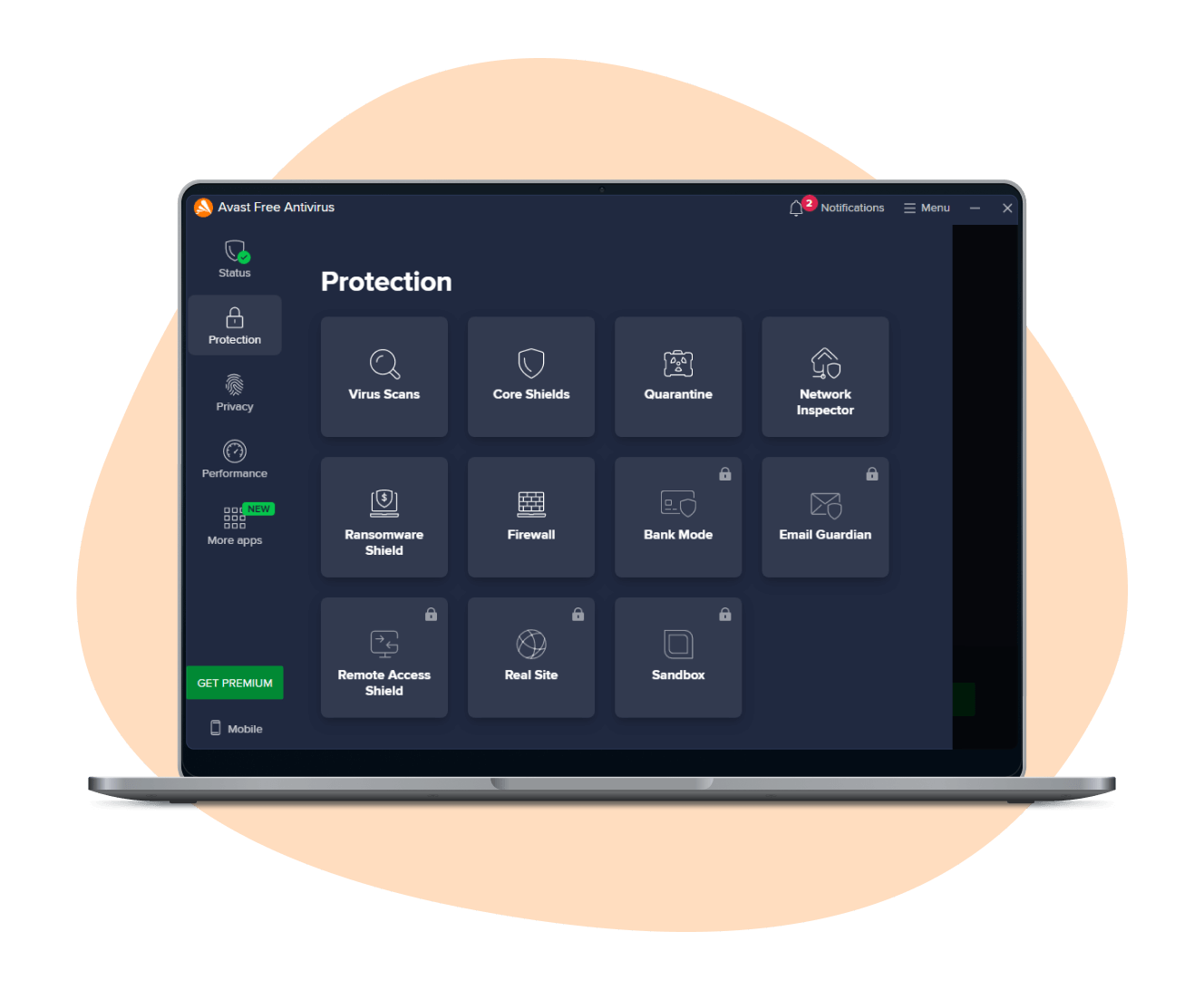
Image credit: Free Virus Scanner | avast.com
Follow the prompts to quarantine or delete detected threats.
Step 4: Remove Suspicious Browser Extensions and Reset Browsers
In Chrome/Edge/Firefox: Go to Extensions and remove anything unfamiliar. Then reset settings to default.
Step 5: Check for Suspicious Startup Items
Windows: Task Manager > Startup tab—disable unknown entries.
Mac: System Settings > General > Login Items.
Step 6: Update Your Operating System and Apps
Patches often fix the vulnerabilities malware exploits.
Step 7: Run Additional Scans
Use Malwarebytes or HitmanPro as a second scanner. Sometimes one tool misses what another catches.
Step 8: Change Passwords (From a Clean Device)
If you suspect keyloggers or spyware, change all important passwords—email, banking, social media—from a different, trusted device.
Enable two-factor authentication everywhere possible.
Step 9: Restore from Backup (If Needed)
If ransomware hit or files are corrupted, restore from a recent backup.
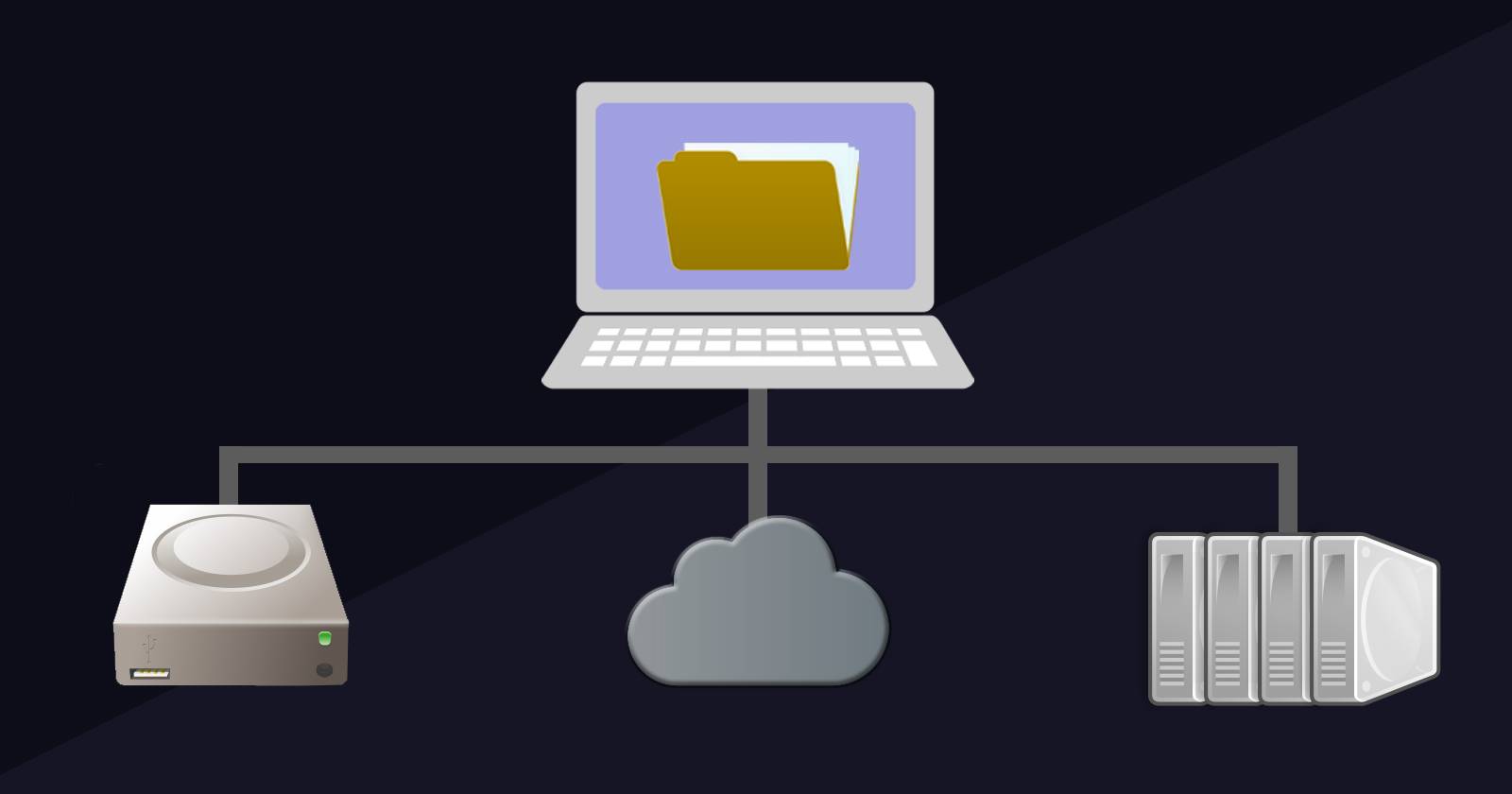
Image credit: External Drive, Cloud Storage, or Network Drive: makeuseof.com
Only restore after confirming the device is clean.
Step 10: Reconnect and Monitor
Reconnect to the internet and watch for any returning symptoms. Run another scan in a few days.
Best Tools to Help Spot and Remove Malware
Here are reliable choices in 2026:
- Built-in Options Windows Security (Defender), XProtect (Mac), Google Play Protect (Android).
- Free Third-Party Avast, AVG, Malwarebytes, Bitdefender Scanner.
- Paid (Worth It for Real-Time Protection) Bitdefender, Norton, Kaspersky, ESET.
Always download from official websites to avoid fake versions.
How to Prevent Malware Infections Going Forward
Prevention is much easier than cleanup. Here are habits that keep most threats away:
- Keep everything updated—OS, browsers, apps.
- Use strong, unique passwords + password manager.
- Enable two-factor authentication (2FA) on every account.
- Be cautious with email attachments and links.
- Download software only from official sites or app stores.
- Avoid pirated content and “free” cracks/keygens—they’re malware magnets.
- Use ad blockers and anti-tracking extensions.
- Back up important files regularly (3-2-1 rule: 3 copies, 2 media types, 1 offsite).
- Use a VPN on public Wi-Fi.
- Educate yourself on current scams—phishing, fake tech support calls, etc.

Image credit: Laptop With Protection Shield – 123rf.com
What to Do After You’ve Removed Malware
- Monitor bank statements and credit reports for unusual activity.
- Notify contacts if malware sent spam from your accounts.
- Consider professional help if you’re unsure or if sensitive data was exposed.
- Run regular scans (weekly or monthly).
- Stay vigilant—malware authors never stop trying new tricks.
Frequently Asked Questions
1.Can malware infect my iPhone?
Yes, but it’s rare. Jailbroken devices are more vulnerable. Stick to App Store apps and keep iOS updated.
2.Is Windows Defender enough?
For most people, yes—especially with good habits. Adding Malwarebytes for occasional scans is a solid combo.
3.Should I pay ransomware demands?
No. Paying funds criminals and doesn’t guarantee you’ll get files back.
4.How do I know if malware is gone?
Multiple clean scans, normal performance, no pop-ups or redirects.
5.Can malware spread to other devices on my network?
Yes, especially worms. Isolate infected devices and scan everything.
Final Thoughts
Spotting and removing malware doesn’t have to be scary. By learning the signs—slow performance, strange pop-ups, unexpected behavior—you can catch most infections early. Follow the removal steps carefully, use trusted tools, and build strong prevention habits.
Your device is your gateway to work, banking, photos, and communication. Keeping it clean protects everything that matters.
Stay safe out there, keep scanning, and don’t click on anything that feels off.
Share this content:








Post Comment